
Receivable Payments via PayID
Receivable payments via PayID
This article will walk you through the steps to enable your business to get paid with PayID.
Your business can accept real-time deposits by providing each customer with their own unique PayID. By giving every customer a dedicated PayID, any funds sent to that identifier can be automatically matched to the correct customer.
If you’d like to activate this feature, it must first be enabled on your account. Please contact us at [email protected] to get started.
Initial Setup
We will require the following information to enable the PayID feature:
- Full legal entity name
- e.g. Spaceships Pty Ltd
- PayID alias name that customers will see when they enter the supplied PayID
- e.g. Spaceships Australia
- A legally owned domain that will be used after the @ in the PayID email address
- e.g. pay.spaceships.com.au
We will then enable your Zepto account with a receivable Float Account.
This account will hold all of the payments you receive via your PayIDs. Its balance can be viewed through the Zepto UI and API.
You may then withdraw float funds to an external bank account at any time. For more information see step 5.
Step 1 - Create a Contact with PayID
The first step is to create a receivable Contact with your chosen PayID email. This can be done using our POST /contacts/receivable endpoint.
This endpoint requires the following mandatory fields:
- customer's full name
- personal email address
- a unique and relevant PayID
Restrictions:
-
The requested PayID email address must be unique for each customer
-
You control the username part of the email address, before the @ symbol. We suggest an approach where a combination of first name and an internal customer number is used to generate a unique username, for example:
jack11223344 -
The domain following the @ symbol must match the verified domain provided to Zepto, for example:
pay.spaceships.com.au -
The final value for the "payid_email" attribute should look similar to:
"payid_email": "[email protected]"
Note
Please provide 1 week's notice if you need to process over 5k registrations or 1k de-registrations in 24 hours, as approval is to be granted by both Zepto and our Sponsor Bank prior.
Endpoint: POST /contacts/receivable
{
  "name": "Jack Karlson",
  "email": "[email protected]",
  "payid_email": "[email protected]",
  "metadata": {
    "custom_key": "Maybe a customer number",
    "another_custom_key": "Maybe a mobile number"
  }
}
{
"data": {
"id": "a7565a92-a570-4ad1-b5c9-e6763e8af42e",
"name": "Jack Karlson",
"email": "[email protected]",
"type": "anyone",
"metadata": {
"custom_key": "Maybe a customer number",
"another_custom_key": "Maybe a mobile number"
},
"bank_account": {
"id": "2df3ec05-d0bc-4b3a-a102-45224844255e",
"account_number": "12345678",
"branch_code": "802919",
"bank_name": "Zepto Float Account",
"state": "active",
"iav_provider": null,
"iav_status": null,
"blocks": {
"debits_blocked": false,
"credits_blocked": false
}
},
"anyone_account": {
"id": "9e03589a-454e-4501-a8e3-f8bb918f850a"
},
"payid_details": {
"alias_value": "[email protected]",
"alias_type": "email",
"alias_name": "Spaceships Australia",
"state": "pending"
}
}
}Step 2 - Listen for the PayID registration final state
At this stage, you should have successfully created a new Contact and stored the id that was returned in the response. This id is paramount in identifying which Contact had their PayID successfully registered. But before we look at how to discover this final state, it's important to know that there are 2 possible final states:
- Successful registration
- Failed registration
Successful Registration
Subscribe to the contact.payid_activated webhook.
The requested PayID has been successfully registered and the payid_details alias_value can now be stored against your customer record, exposed through your relevant channels, and retained for the duration of the relationship with that customer.
"payid_details.state": "active"
Failed Registration
Subscribe to the contact.payid_failed webhook.
This should be an extremely rare situation, but if encountered please get in touch with our support team.
"payid_details.state": "fail"
This can occur if a PayID email has already been registered. To avoid this, ensure that the provided email domain is unique and not in use for staff/customer email addresses.
{
  "data": [
    {
      "id": "a7565a92-a570-4ad1-b5c9-e6763e8af42e",
      "name": "Jack Karlsonk",
      "type": "anyone",
      "email": "[email protected]",
      "metadata": {},
      "bank_account": {
        "id": "fdb03fbc-df8c-4e54-a66d-e931044d5e1c",
        "state": "active",
        "blocks": {
          "debits_blocked": false,
          "credits_blocked": false
        },
        "bank_name": "Zepto Float Account",
        "iav_status": null,
        "branch_code": "802919",
        "iav_provider": null,
        "account_number": "1065042"
      },
      "anyone_account": {
        "id": "5f05846b-1c65-40f9-b918-f0dc455550c2"
      },
      "payid_details": {
        "state": "active",
        "alias_name": "Spaceships Corp",
        "alias_type": "email",
        "alias_value": "[email protected]"
      }
    }
  ],
  "event": {
    "at": "2020-11-26T22:26:02Z",
    "who": {
      "account_id": "1b1985dc-9a47-410c-bfd7-d987d72a1197",
      "account_type": "Account"
    },
    "type": "contact.payid_registered"
  }
}
This webhook contains all of the information required to identify who this PayID registered update is for, specifically by using:
| The contact id stored from step 1 | "id": "a7565a92-a570-4ad1-b5c9-e6763e8af42e" |
| The supplied PayID value | "alias_value": "[email protected]" |
We offer 2 options to asynchronously discover the final state.
Option 1 (Preferred): Subscribe to the Contact webhooks for real-time notifications on registration status. This can be accessed by signing in to your Zepto account.
Option 2: Poll our GET /contacts/{id} endpoint using the Contact id returned in the response from step 1. If going with this option, we recommend polling every 30 seconds.
Step 3 - Expose PayID to your customer
At this stage, the Zepto Contact ID and PayID should be stored against your customer record. The PayID can now be displayed to your customer through the relevant checkout/channels.
Tip
- To reduce human error and improve the customer experience we suggest enabling a copy function to allow easier entry into their banking platform.
- If you wish to display the PayID logo to your customer you must accept the NPPA's PayID terms and conditions, download the official PayID logo pack and adhere to their brand guidelines as described here.
Step 4 - Reconcile received payments
This section explains what happens whenever one of your customers sends a deposit to their unique PayID.
4a. Zepto receives your customer's payment
As soon as Zepto receives a payment from one of your customers, you will be notified via our Payment_Request.Approved webhook.
It is at this point that you should allocate the funds into your customers wallet.
These funds will initially sit in Zepto's main account and will be moved into your PayID-enabled float account using what we call a Payment Request.
A Payment Request is automatically created from your PayID-enabled float account to your PayID Receivable Contact. By subscribing to this webhook we will notify you in real-time when the funds have been received, allowing you to trigger the crediting of those funds into your customer's account and any other relevant downstream business processes.
NOTE: At this stage, you have total assurance that the funds are being processed into your PayID-enabled float account.
{
  "data": [
    {
      "ref": "PR.pnb",
      "payout": {
        "amount": 2500,
        "matures_at": "2020-11-26T13:00:00Z",
        "description": "1"
      },
      "status": "approved",
      "metadata": {
        "npp_alias_type": "/EMAL",
        "npp_alias_value": "[email protected]",
        "npp_debtor_name": "Jack Karlson",
        "npp_debtor_legal_name": "Jack Karlson",
        "npp_payment_reference": "Test Payment",
        "npp_debtor_branch_code": "014209",
        "npp_payment_description": "Test Payment",
        "npp_debtor_account_number": "12345678",
        "npp_payment_transaction_id": "ESFHAU21XXXN20210608DA0000013537000"
      },
      "created_at": "2020-11-26T22:23:09Z",
      "credit_ref": "C.3dv9",
      "matures_at": "2020-11-26T13:00:00Z",
      "initiator_id": "1d0eac6b-a81d-4bad-ab9e-8006b16aa185",
      "responded_at": "2020-11-26T22:23:09Z",
      "schedule_ref": null,
      "authoriser_id": "c0dd0b3b-555e-41ec-983e-14f7b6e7dc59",
      "status_reason": null,
      "your_bank_account_id": "1d0eac6b-a81d-4bad-ab9e-8006b16aa185",
      "authoriser_contact_id": "a7565a92-a570-4ad1-b5c9-e6763e8af42e"
    }
  ],
  "event": {
    "at": "2020-11-26T22:23:09Z",
    "who": {
      "account_id": "ba5c54ce-de1e-4355-9864-fdd7b90fbae0",
      "account_type": "AnyoneAccount",
      "bank_account_id": "c0dd0b3b-555e-41ec-983e-14f7b6e7dc59",
      "bank_account_type": "BankAccount"
    },
    "type": "payment_request.approved"
  }
}
If referencing the value of npp_alias_value, it is best practice to be case-insensitive.
This webhook contains all of the information required to identify who made the payment, and its value:
| Value (cents) | "payout.amount": 2500 |
| Who (the id stored from Step 1) | "authoriser_contact_id": "2eea479d-7b00-4002-8a16-6cfeac6cedc9" |
Please note that the metadata content differs slightly depending on how the payment was sent by the payer, as per below.
"metadata": {
  "npp_alias_type": "/EMAL",
  "npp_alias_value": "[email protected]",
  "npp_debtor_name": "Jack Karlson",
  "npp_debtor_legal_name": "Jack Karlson",
  "npp_payment_reference": "Test Payment",
  "npp_debtor_branch_code": "014209",
  "npp_payment_description": "Test Payment",
  "npp_debtor_account_number": "12345678",
  "npp_payment_transaction_id": "ESFHAU21XXXN20210608DA0000013537000"
}
"metadata": {
"npp_alias_type": null,
"npp_alias_value": null,
"npp_debtor_name": "Jack Karlson",
"npp_debtor_legal_name": "Jack Karlson",
"npp_payment_reference": "NOTPROVIDED",
"npp_debtor_branch_code": "014209",
"npp_payment_description": "Test Payment",
"npp_debtor_account_number": "12345678",
"npp_payment_transaction_id": "ESFHAU21XXXN20210608DA0000013537001"
}"metadata": {
"de_debtor_name": "Jack Karlson",
"de_debtor_branch_code": "014209",
"de_lodgement_reference": "Test Payment",
"de_debtor_account_number": "12345678"
}4b. Funds become available in your PayID-enabled float account
To be notified once the payment has been cleared and settled into your float account, you must subscribe to our credit.cleared webhook notification. These funds will not appear as an available balance until they have fully cleared, which can take up to 3 minutes.
{
  "data": [
    {
      "ref": "C.34jt",
      "type": "credit",
      "amount": 2500,
      "status": "cleared",
      "bank_ref": "CT.2kee",
      "category": "payout",
      "channels": [
        "direct_entry"
      ],
        "metadata": {
        "npp_alias_type": "/EMAL",
        "npp_alias_value": "[email protected]",
        "npp_debtor_name": "Jack Karlson",
        "npp_debtor_legal_name": "Jack Karlson",
        "npp_payment_reference": "Test Payment",
        "npp_debtor_branch_code": "014209",
        "npp_payment_description": "Test Payment",
        "npp_debtor_account_number": "12345678",
        "npp_payment_transaction_id": "SPPYAU22XXXN20210223000000000534600"
      },
      "cleared_at": "2020-11-20T01:39:52Z",
      "created_at": "2020-11-20T01:34:38Z",
      "matures_at": "2020-11-20T01:37:54Z",
      "parent_ref": "PR.p4n",
      "party_name": "Jack Karlson",
      "description": "PayID Payment received",
      "party_bank_ref": "DT.2wsf",
      "party_nickname": null,
      "bank_account_id": "1d0eac6b-a81d-4bad-ab9e-8006b16aa185",
      "current_channel": "xxx",
      "party_contact_id": "a7565a92-a570-4ad1-b5c9-e6763e8af42e",
      "status_changed_at": "2020-11-20T01:39:52Z"
    }
  ],
  "event": {
    "at": "2020-11-20T01:39:52Z",
    "who": {
      "account_id": "1b1985dc-9a47-410c-bfd7-d987d72a1197",
      "account_type": "Account",
      "bank_account_id": "1d0eac6b-a81d-4bad-ab9e-8006b16aa185",
      "bank_account_type": "BankAccount"
    },
    "type": "credit.cleared"
  }
}
This webhook contains all of the information required to identify the payer:
| The value of the payment received (cents) | "amount": 2500 |
| Who made the payment (the id stored from Step 1) | party_contact_id": "a7565a92-a570-4ad1-b5c9-e6763e8af42e |
Step 5 - Transfer funds from your Float Account into your bank account
There are 2 ways that funds can be transferred into your bank account once they have cleared inside your float account:
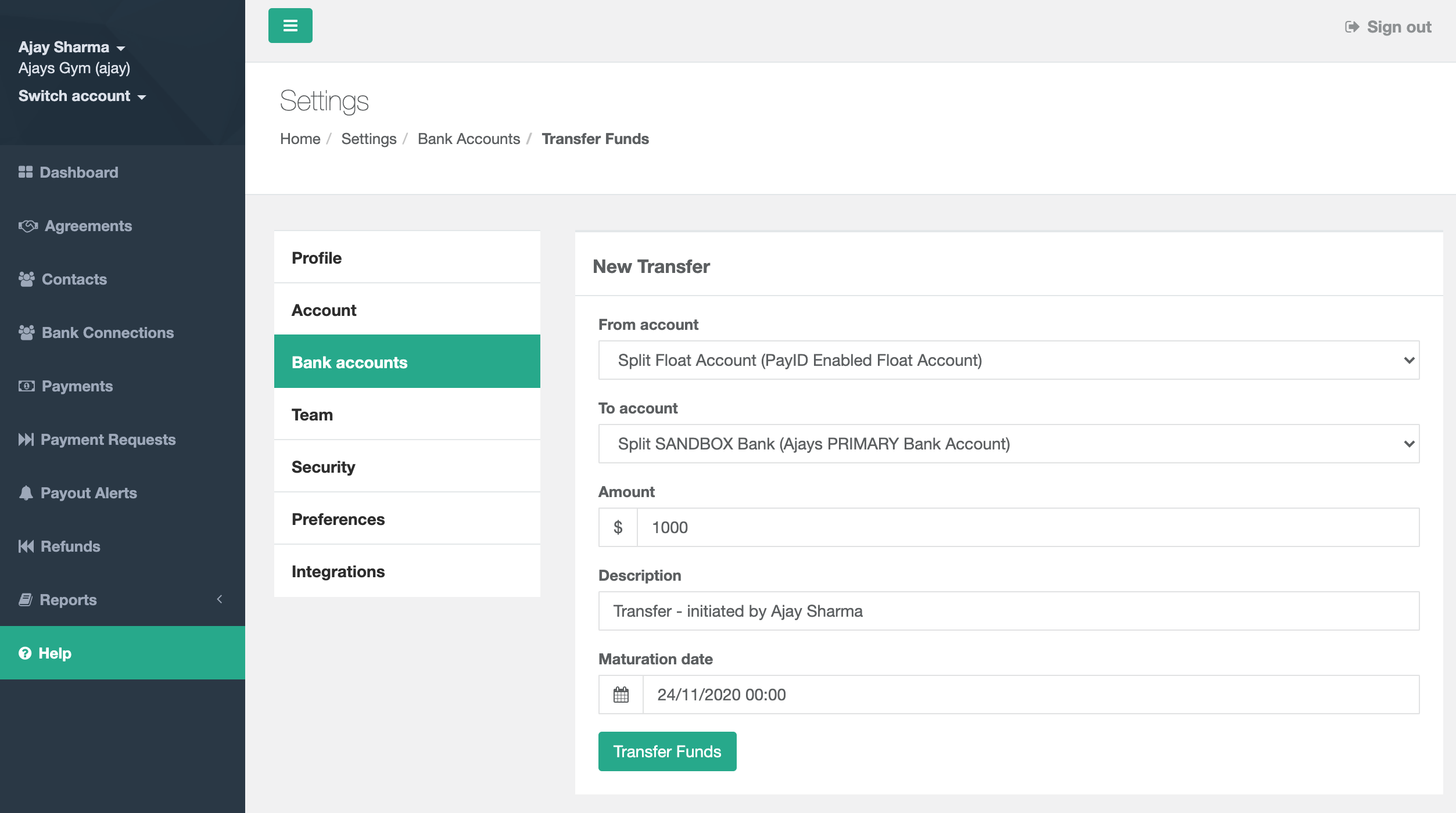
Option 1: You can initiate a Transfer from your, PayID enabled Float account into your bank account using our Float Management tools hosted within your Zepto Merchant dashboard.
- Log in to your account
- Click on your name in the top left-hand corner
- Click on Settings
- Click on Bank accounts
- Click on the PayID enabled float account
- Click on the Transfer Funds button on the top right
- Ensure the correct From account has been selected
- Select the To account that you wish to transfer funds into
- Add the value, a description, a maturation date if you wish to initiate the Transfer at a later time, and click the Transfer Funds button
Option 2 :
You can also programmatically transfer funds from your PayID enabled float account into your deposit bank account using our Payout endpoint. See our Help article on Integrating Payouts via BSB and Account Number.
NOTE: The bank account added cannot be a bank account that has been registered to your Zepto Account.
Reporting
You can access all of your transactional data using your account dashboard and built-in reporting features. For more detailed information on how to access your reports, see here.
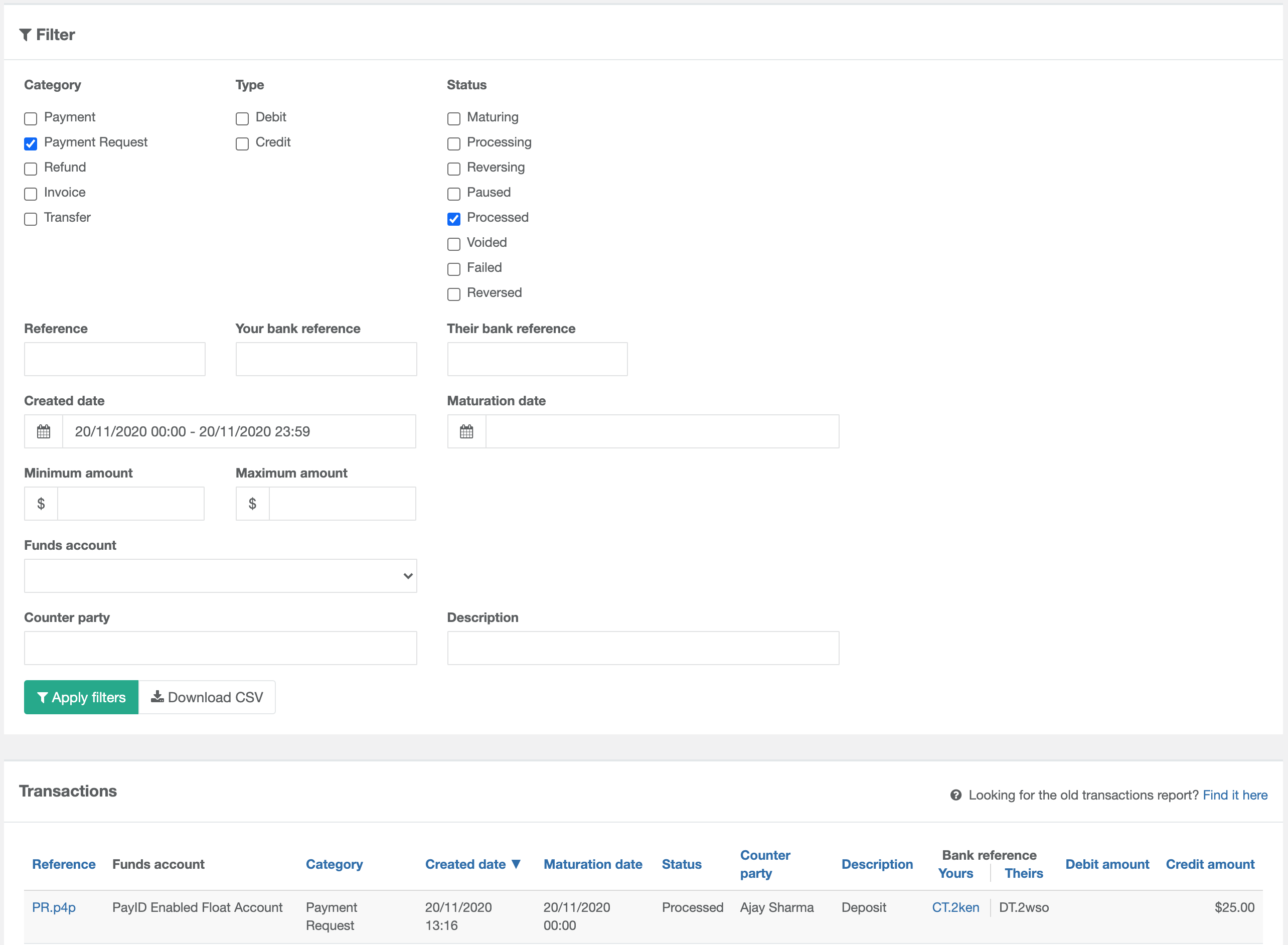
To reconcile Payments received via PayID, use the Transactions Report, and filter using the following values:
- Category: Payment Request
- Funds account: PayID enabled float account
- Created Date: date.today / date.week / date.month
- Status: Processed
Contact and PayID Management
The NPPA actively enforces and monitors all PayID de-registration processes and as such, Zepto must ensure that our merchants implement a de-registration process when PayIDs are deemed inactive.
Inactive: No payments have been received via PayID or the associated BSB/Account# for over 15 months
Contact and PayID information should of course be retained for as long as you have an active relationship with your customer.
Should your relationship end with that customer, the Contact must be removed using our Remove Contact endpoint. This will delete the contact and de-register the associated PayID.
The NPPA and Zepto Payments reserve the right to de-register inactive PayIDs at any time after this, where a merchant fails to deregister an inactive PayID.
To retain a good customer experience, the customer should be able to generate a new PayID if required at a later time.
NOTE: Zepto supports 3 PayID states:
| Registered | PayID can receive payments |
| De-registered | PayID can NOT receive payments |
| Locked | PayID can NOT receive payments |
Disabling a PayID:
To disable a receivable contact you will need to make a request to the following API endpoint:
POST /contacts/{contact_id}/receivable/disable
Once your request has been successful, all payments made to the relevant Account number or PayID will be rejected and returned back to your customer. Payments made via DE and NPP will be rejected.
Reactivating a PayID:
If you would like to reactivate a disabled receivable contact, you will need to make a request to the below endpoint:
POST /contacts/{contact_id}/receivable/activate
This will once again allow you to receive funds from your customer via both DE and NPP channels.
FAQs
You will have to create a brand new Contact with a new PayID, as the same PayID cannot be reused.
Updated 23 days ago