
Dual Approval
Dual Approval
Dual Approval adds a layer of security to your payment workflow by requiring a second authorised user to review and approve manually initiated payments before being processed. No payment goes out the door without a second set of eyes.
Overview
Dual Approval is a Maker–Checker control in the Zepto UI that requires two distinct users to authorise a payment before it is sent. The Maker initiates the payment; the Checker reviews and approves it. This reduces the risk of errors, unauthorised transactions, and single points of failure in your payment operations.
This guide covers enabling the feature, managing approvers, initiating payments, and handling approval requests.
High-Value Operations
Add a mandatory second set of eyes to payment runs initiated in the Merchant UI.
Finance Controls
Meet internal segregation-of-duties policies and regulatory expectations around payment authorisation.
Risk & Auditability
Limit the impact of a compromised account and maintain a clear audit trail of who initiated and who approved each payment.
Note: Dual approval applies to UI-initiated payments only. Does not affect API calls.
How It Works
Assign Checkers
The account Owner designates one or more users as Checkers, authorising them to review and approve payments.
Initiate Payment
A Maker initiates a payment request, which is held in a Pending Approval state.
Review Payment
A Checker is notified via email and reviews any payments pending approval.
Approve or Reject
The Checker confirms or rejects the payment. Approved payments begin processing immediately; rejected requests are closed with no funds moved.
Role Permissions
| Action | Maker | Checker |
|---|---|---|
| Create/submit payment | ||
| Cancel own pending payment | ||
| Approve payment | ||
| Reject payment |
Important Note: The Maker and Checker must always be different users. A Maker, regardless of role (i.e. Owner or Admin) cannot approve their own payment requests.
Enable Dual Approval
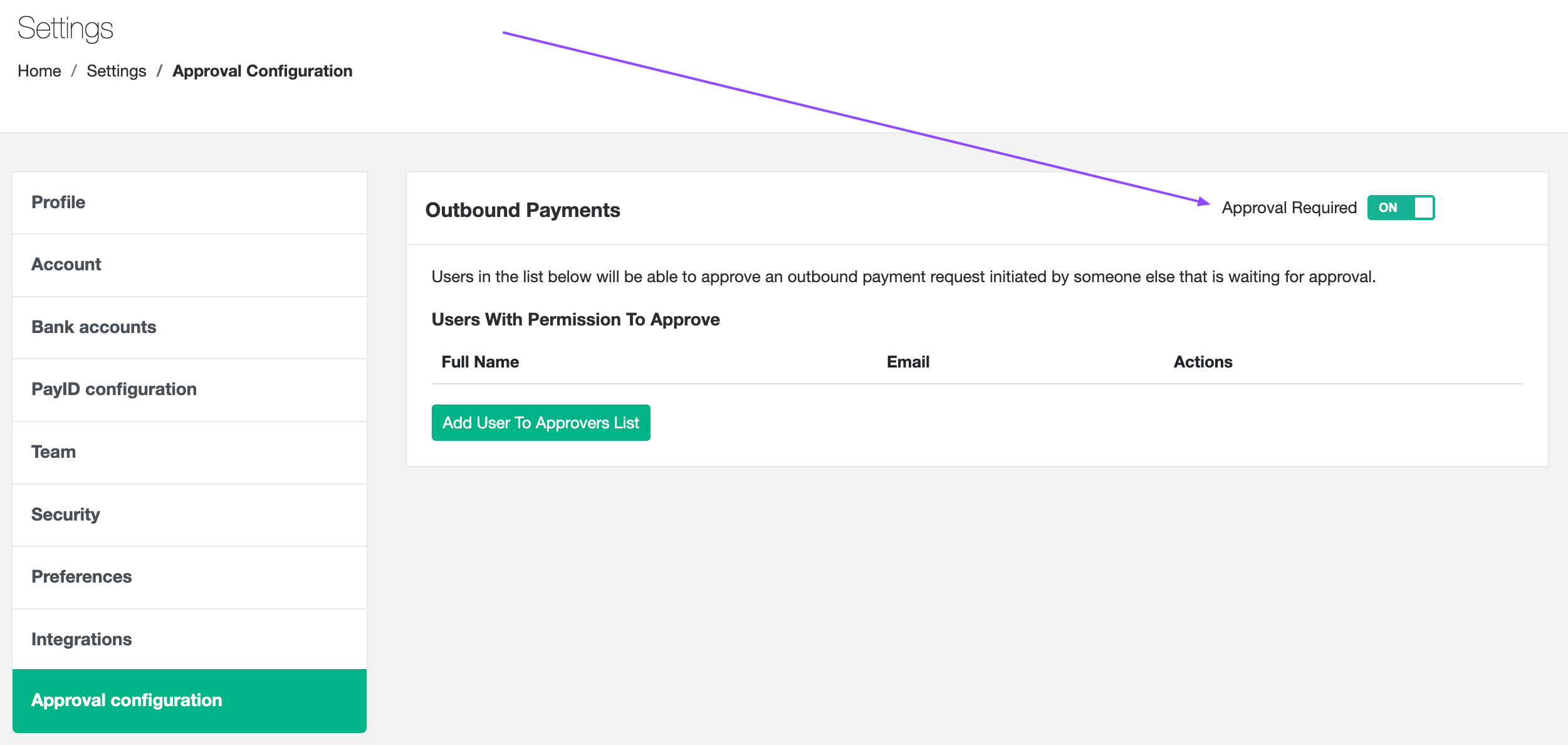
- Log into your Zepto Portal as the account Owner
- Navigate to Settings in the side menu
- Click Approval Configuration
- Toggle Approval Required to On
Add Approvers (i.e. Checkers)
- Navigate to the Approval Configuration page, click Add User to Approvers List
- Select the user(s) you wish to add as approver(s)
- Click Confirm
Removing Approvers
- Navigate to the Approval Configuration page
- Click the Remove action next to the user you wish to revoke Approver permissions from
The Maker
The experience for initiating payments by the Maker is largely unchanged. When dual approval is enabled, the authorised Maker (i.e. the user initiating the payment) can submit a payment from the UI as normal. However, instead of processing immediately, the payment is placed in a Pending Approval state.
Manage Pending Requests
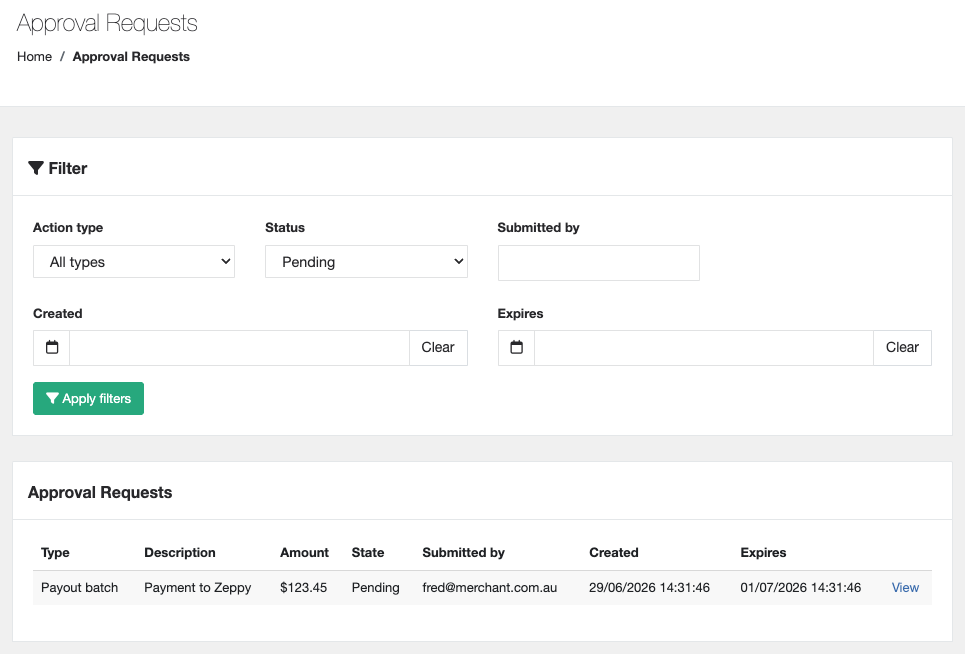
The Maker can view and manage their pending requests from the Approval Requests page as shown below:
Important Note: Approval requests cannot be approved more than 48 hours after submission. Trying to approve a request that is 48 hours or older will result in a failure and will need to be re-submitted.
Cancel a Pending Payment Request
Change of mind or found an error? The Maker can cancel a request at any time before it has been approved:
- Navigate to the Approval Requests page
- Find the pending payment request and select Cancel
The Checker
If the Checker has the Payment Approver capability, this part of the flow is new. When a Maker submits a payment for review, the Checker will receive an email notification and has 48 hours to review and either approve or reject the request.
Manage Pending Requests
The Checker can view and manage their pending requests from the Approval Requests page:
- Navigate to the Approval Requests page
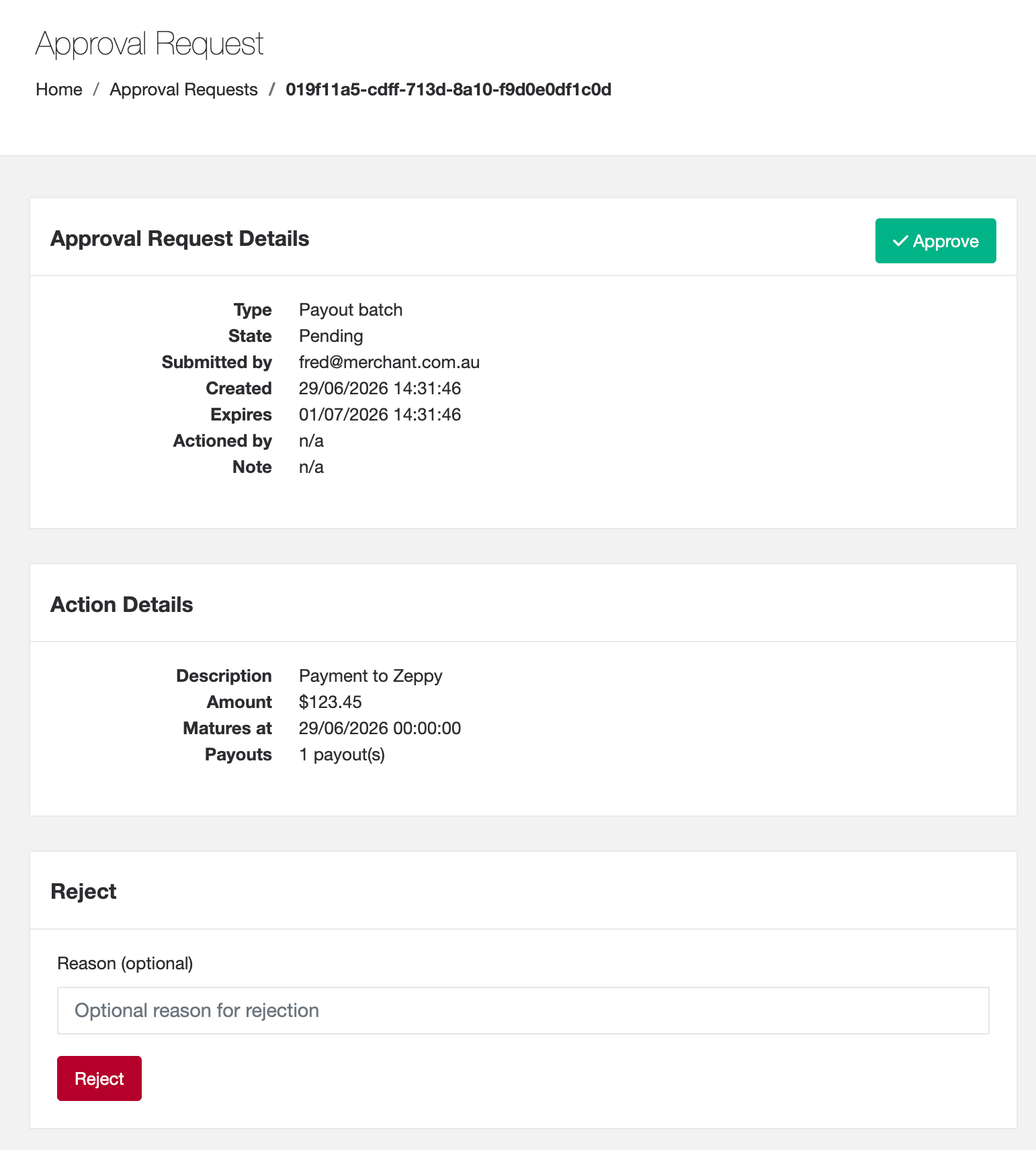
- Select a pending request to view the full details (amount, recipient, bank account, etc.)
- Choose Approve or Reject
If approved
- The payment is created and begins processing immediately
- The request is marked as Approved
If rejected
- The Checker can optionally add a note explaining the reason
- No funds are moved and the request is marked as Rejected
Updated 3 months ago